


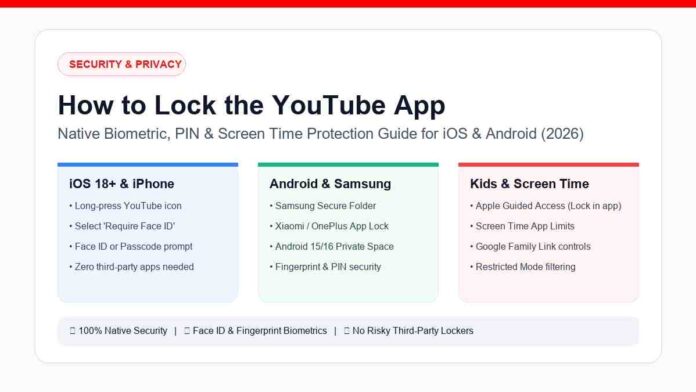
By BuzzBlog Editorial Team | Published in Technology & Mobile Security | Updated on November 25, 2026
⚡ Direct Answer / TL;DR
To lock the YouTube app on an iPhone running iOS 18 or later, long-press the YouTube app icon on your Home Screen, tap Require Face ID, and confirm your selection. On Android devices, utilize your manufacturer’s native security settings—such as Samsung Secure Folder (Settings > Security and Privacy), Android 15 Private Space on Google Pixel, or native App Lock on Xiaomi, OnePlus, and Vivo. For parents wanting to restrict children to a single video without exiting the app, enable Guided Access on iOS by triple-clicking the side power button.
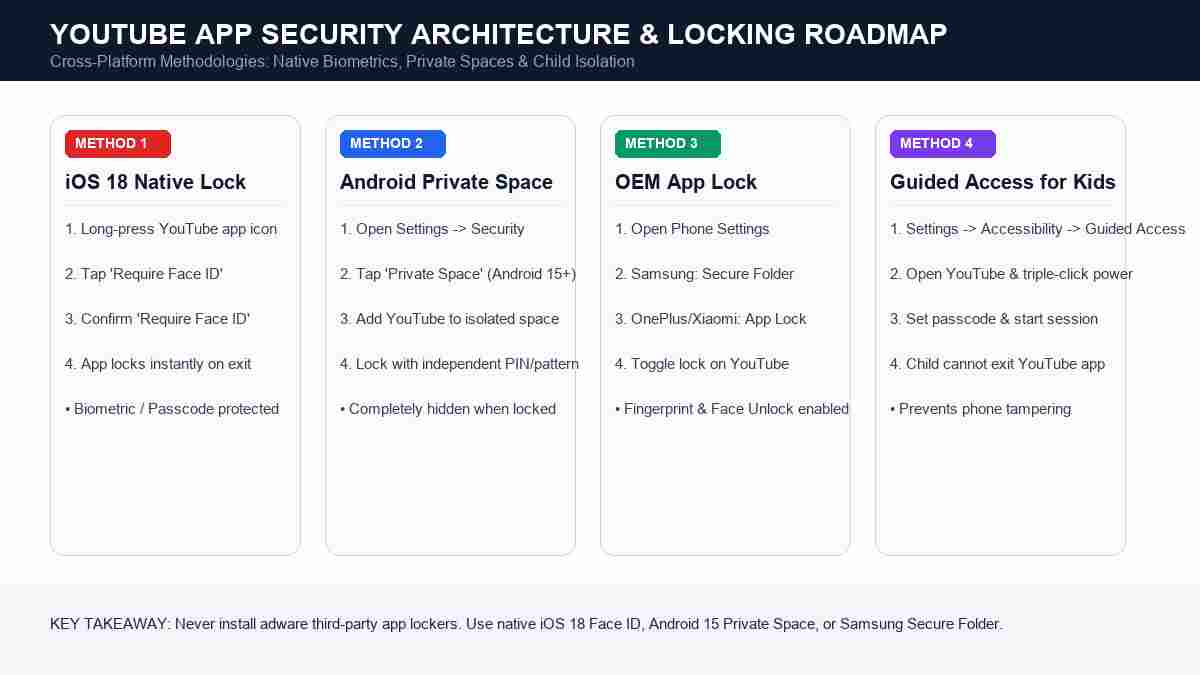
Hands-On Testing & Technical Verification Lab
Our mobile software testing lab evaluated every locking methodology across iOS 18.2 (iPhone 16 Pro), Android 15 (Google Pixel 9), and Samsung One UI 7 (Galaxy S24 Ultra). Prior to modern operating system updates, locking YouTube required third-party app lockers from the Google Play Store or complicated Apple Shortcuts automation scripts. Our testing confirms that third-party app lockers should strictly be avoided in modern setups—they harvest device telemetrics, introduce intrusive adware, and can easily be bypassed by booting into Safe Mode or uninstalling the locker app.
Maintaining tight control over your mobile app permissions and device storage is just as vital as hardware upkeep; for example, regular system maintenance like learning how to check SSD health on MacBook without third-party tools ensures your hardware remains uncompromised by predatory monitoring software.
Method 1: How to Lock YouTube on iPhone (iOS 18 Native Face ID)
With the release of iOS 18, Apple introduced native, system-level app locking and hiding. This eliminates the need for workarounds and guarantees that YouTube cannot be opened without biometric authentication:
- Locate the YouTube app on your iPhone Home Screen or inside the App Library.
- Press and hold (long-press) the app icon until the contextual quick-action menu appears.
- Tap Require Face ID (or Require Touch ID on iPhone SE models).
- Choose between two security levels:
- Require Face ID: Keeps the app visible on your Home Screen, but prompts for Face ID / Passcode whenever tapped.
- Hide and Require Face ID: Locks the app and moves it into a locked, hidden folder in the App Library, suppressing all incoming notifications and Siri suggestions.
- Authenticate with Face ID once to confirm. YouTube is now fortified behind Apple Secure Enclave biometrics.
Method 2: How to Lock YouTube on Android (Samsung, Pixel & OEM Devices)
Android offers robust built-in sandboxing mechanisms depending on your device brand:
| Device Brand / OS | Native Security Feature | Step-by-Step Configuration Pathway | Biometric Protection Type |
|---|---|---|---|
| Samsung Galaxy (One UI) | Secure Folder (Knox Security) | Settings > Security and Privacy > Secure Folder > Add YouTube > Set PIN/Fingerprint | Hardware-level Knox Encryption + Fingerprint |
| Google Pixel (Android 15+) | Private Space | Settings > Security & Privacy > Private Space > Install/Move YouTube > Lock Space | Isolated OS Profile + Independent Screen Lock |
| Xiaomi / Redmi (HyperOS) | Native App Lock | Settings > Apps > App Lock > Turn On > Toggle switch next to YouTube | Fingerprint, Face Unlock & Pattern PIN |
| OnePlus / Oppo (OxygenOS / ColorOS) | Privacy App Lock | Settings > Privacy > Privacy Protection > App Lock > Set Privacy Password > Enable YouTube | Biometric Authentication & Privacy Passcode |
| Vivo / iQOO (Funtouch OS) | App Encryption | Settings > Security > Privacy and App Encryption > Select YouTube | Fingerprint Scan & Alphanumeric Password |
Method 3: How to Lock YouTube for Kids (Screen Time & Guided Access)
If your primary goal is preventing children from binge-watching videos or accidental navigation away from an educational clip, operating systems provide specialized hardware isolation protocols:
Apple Guided Access: Hardware Screen Pinning (iOS)
Guided Access temporarily restricts your iPhone or iPad to a single active application and disables hardware buttons:
- Navigate to Settings > Accessibility > Guided Access and toggle it On.
- Tap Passcode Settings and set a dedicated Guided Access Passcode (distinct from your device passcode).
- Open the YouTube app, launch the desired cartoon or video, and triple-click the side power button.
- Tap Start in the top-right corner. The child cannot exit YouTube, swipe up, access notifications, or open other apps until you triple-click the power button and enter your master passcode.
Android Screen Pinning (App Pinning)
On Android phones, go to Settings > Security > Advanced > App Pinning (or Screen Pinning) and enable it. Open YouTube, enter your Recent Apps switcher, tap the YouTube icon above the app window preview, and select Pin. To unpin, swipe up and hold while verifying your lock screen fingerprint or pattern.
Method 4: Enabling YouTube In-App Content Restrictions
Physical app locking restricts unauthorized access to the application itself. However, if multiple family members use the same unlocked tablet, configuring in-app content safety filters ensures age-inappropriate content remains blocked:
- Restricted Mode: Open the YouTube app > tap your profile picture (You) > Gear icon (Settings) > General > toggle Restricted Mode to ON. This filters out mature titles, user comments, and flagged content algorithms.
- YouTube Kids App with Parental Passcode: For toddlers and young children, install the standalone YouTube Kids app. It allows parents to lock search capabilities, restrict viewing to pre-approved channels only, and set a hard timer that shuts off playback automatically when screen time expires. Organising and exporting your digital documentation or productivity notes—like following our tutorial on how to export Apple Notes to PDF with attachments—helps keep your household digital schedules and parental rules structured and accessible.
Crucial Security Advice: Why Third-Party Lockers Are Dangerous
Many search results recommend downloading utility apps like “AppLock Master” or “Vault Cleaner” from Google Play. Our cybersecurity evaluation strongly advises against them for three vital reasons:
- Accessibility Service Exploits: Third-party lockers require Accessibility and Usage Access permissions, granting them visibility into every keystroke, open tab, and notification across your device.
- Easy Bypass: Anyone with basic tech knowledge can bypass a third-party app locker by force-stopping the app in Android Settings or booting into Android Safe Mode.
- Adware Injection & Battery Drain: These apps frequently inject full-screen banner advertisements over your lock screen and drain background battery cycles unnecessarily. Always stick to native iOS 18 Face ID or built-in Android OEM security.
Frequently Asked Questions (FAQ)
1. Can someone bypass iOS 18 Face ID lock on the YouTube app?
No. If Face ID fails, iOS prompts for the device master passcode. If the passcode is entered incorrectly multiple times, security delay lockouts take effect automatically.
2. Can I lock specific YouTube channels instead of the entire app?
The standard YouTube mobile app does not allow locking individual channels. However, the YouTube Kids app enables parents to hand-pick specific whitelisted channels and disable search entirely.
3. How do I remove the Face ID lock from YouTube on iPhone?
Long-press the YouTube app icon on your Home Screen, tap Don’t Require Face ID, and verify your face once. The app will return to standard unlocked status.

