


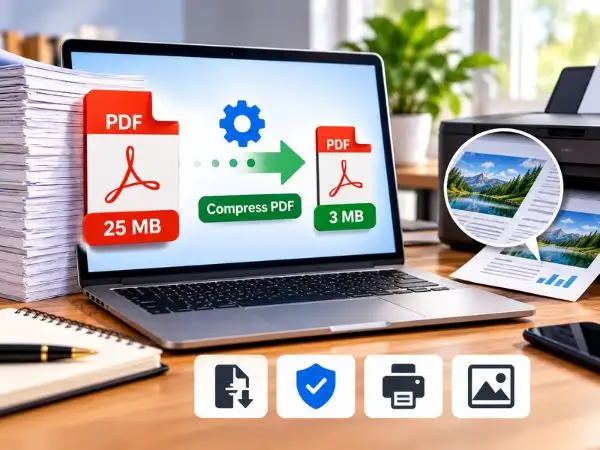
Whether applying for a job, submitting tax forms, or uploading documents to a government or university portal, encountering strict file size limits (such as “Must be under 1 MB or 2 MB”) is common.
Standard automated compressors often over-compress documents, turning vector text pixelated, rendering barcodes unscannable, and blurring embedded diagrams.
A PDF does not need to become unreadable to shed 70% to 90% of its weight. Understanding how PDF data is structured enables substantial file size reduction while keeping typography razor-sharp and images crisp for both screen viewing and printing.
Why PDF Files Get So Heavy in the First Place
A PDF rarely grows large because of text. Characters are stored as lightweight vector paths and fonts. Excessive file weight is almost always caused by three hidden elements:
[Uncompressed 300+ DPI Raster Images] + [Fully Embedded System Font Subsets] + [Invisible Metadata & Edit History]
                                                      │
                                                      ▼
                                       Bloated 15 MB – 50 MB PDF File
- Unoptimized Scanner Images: A mobile scanning app or flatbed scanner often defaults to uncompressed 300 to 600 DPI (Dots Per Inch) color imagery for a basic black-and-white page.
- Full Embedded Font Families: The PDF creator may embed entire multi-megabyte font libraries rather than only the specific characters used in the document.
- Hidden Overhead: Layered edit histories, revision marks, bookmarks, and thumbnail previews add unneeded kilobyte padding.
Quality Thresholds: DPI Targets by Use Case
To compress effectively without creating blurriness, match your target resolution to the final output destination:
| Target Use Case | Recommended Image DPI | Color Mode | Expected File Size (Per Page) |
| Official Government / Job Portals | 150 DPI | Grayscale / Color | ~80 KB – 250 KB |
| General Email Attachments | 150 DPI | Color (RGB) | ~100 KB – 300 KB |
| High-Quality Office Printing | 200 – 300 DPI | CMYK / RGB | ~300 KB – 800 KB |
| E-Reader / Mobile Screens Only | 96 – 150 DPI | RGB | ~50 KB – 150 KB |
Rule of thumb: 150 DPI is the universal sweet spot—it reduces file size by up to 80% while remaining crisp on 4K screens and standard office laser printers.
Method 1: The “Microsoft Print to PDF” Virtual Flattening Trick (Windows 10/11)
Windows features a built-in virtual printer that strips unnecessary background layers, removes redundant font subsets, and rebuilds the PDF architecture without third-party software.
Open PDF in Edge/Chrome ──> Press Ctrl + P ──> Destination: "Microsoft Print to PDF" ──> Print
- Right-click your oversized PDF and open it in Microsoft Edge or Google Chrome.
- Press
Ctrl + P(or click the Print icon). - Set the printer destination to Microsoft Print to PDF.
- In the print options, leave margins as Default and ensure scale is set to 100%.
- Click Print, name your new file, and save.
Why this works: Virtual printing strips redundant historical revisions, unneeded form field metadata, and unused embedded subsets, frequently reducing a 15 MB file down to under 2 MB with zero loss in text clarity.
Method 2: Use Native Preview Quartz Filters (macOS)
Mac users have access to an internal vector rendering engine built directly into Apple’s Preview app.
- Double-click to open the PDF in Preview.
- Click File in the top menu bar, then choose Export… (do not select Export as PDF).
- In the format drop-down, select PDF.
- Click the Quartz Filter drop-down menu.
- While Reduce File Size shrinks the file drastically, it can over-compress photos. For documents with images, open the Colorsync Utility app on your Mac to duplicate the filter and set the compression resolution to a balanced 150 DPI.
- Click Save.
Method 3: Adobe Acrobat Pro PDF Optimizer (Custom Control)
For complete control over individual compression parameters:
- Open the PDF in Adobe Acrobat Pro.
- Navigate to Tools > Compress PDF and click Advanced Optimization (or PDF Optimizer).
- Under the Images panel:
- Color Images: Set Bicubic Downsampling to 150 pixels per inch for images above 200 ppi.
- Compression: Select JPEG with quality set to High.
- Under the Fonts panel: Check Unembed fonts for standard system fonts (Arial, Times New Roman, Calibri) to prevent bloated font files from traveling with the document.
- Under Discard Objects: Check Discard all document tags and Discard invalid bookmarks.
- Under Clean Up: Check Compress document structure and select OK.
Also Read : – How to Convert HEIC to JPG on Windows 11 and 10: 5 Safe & Fast Methods
Method 4: Secure Browser-Based Compressors (Free & Safe)
When using a work computer or mobile device without software installation rights, reputable online compression engines can be used:
- Open Adobe Acrobat Free Online Compressor or ILovePDF.
- Drag and drop your file into the tool.
- Select Medium Compression (Recommended / Standard).
- Avoid “Extreme Compression” as it drops DPI below 72, which blurs small text and makes scans illegible.
- Download the optimized file.
Privacy Note: Trustworthy services like Adobe and ILovePDF use end-to-end SSL encryption and purge uploaded documents automatically within 1 to 2 hours. Avoid uploading sensitive personal records (passports, financial accounts) to unfamiliar ad-heavy compression sites.
Method 5: Optimize Scanned Documents Before Exporting (Mobile)
If using a phone to scan documents with apps like Adobe Scan, Microsoft Lens, or CamScanner:
- Switch Color Palette: Change filter presets from Full Color / Photo to Document / Grayscale or Black & White.
- Impact: Eliminating RGB color channels drops the document’s underlying image weight by 60% to 75% while increasing the contrast and legibility of printed text.
Troubleshooting Common PDF Compression Problems
| Problem | Cause | Solution |
| Small text becomes blurry | Aggressive downsampling under 100 DPI | Re-run compression using Medium (150 DPI) instead of Extreme. |
| Colors look faded or washed out | Unintended conversion to CMYK or sRGB shift | Retain original RGB color profile in advanced optimization settings. |
| Interactive form fields stop working | “Flattening” converted fields to static vectors | Use Adobe Acrobat’s Reduce File Size without running full flattening. |
| File size actually increased | PDF was already optimized; re-saving re-embedded assets | Retain the original file; the compression baseline was already reached. |
also read : – How to Fix Google Drive Storage Full but Empty: 7 Proven Fixes
Frequently Asked Questions (FAQ)
Can I reduce a PDF file size to under 1 MB without losing quality?
Yes. For documents under 15 pages, converting images to 150 DPI grayscale, stripping unused metadata, and unembedding full font packages reliably shrinks multi-megabyte files under 1 MB while maintaining sharp, readable text.
Does compressing a PDF affect its electronic digital signature?
Yes. Modifying or optimizing a PDF after an electronic signature (DocuSign, Adobe Sign) is applied breaks the cryptographic hash, invalidating the digital seal. Always optimize and compress documents before applying final digital signatures.
Why does a black-and-white scanned PDF take up so much space?
Scanners often save pages as high-resolution color photographs (24-bit RGB at 300+ DPI) rather than 1-bit monochrome or 8-bit grayscale images. Re-saving the scan in dedicated black-and-white document mode drastically cuts file size.
Is it safe to compress confidential legal or tax documents online?
For sensitive documents containing Social Security numbers, bank accounts, or private contracts, avoid third-party web converters. Use offline tools like Microsoft Print to PDF, macOS Preview, or desktop versions of Adobe Acrobat to process data locally on your computer.

