


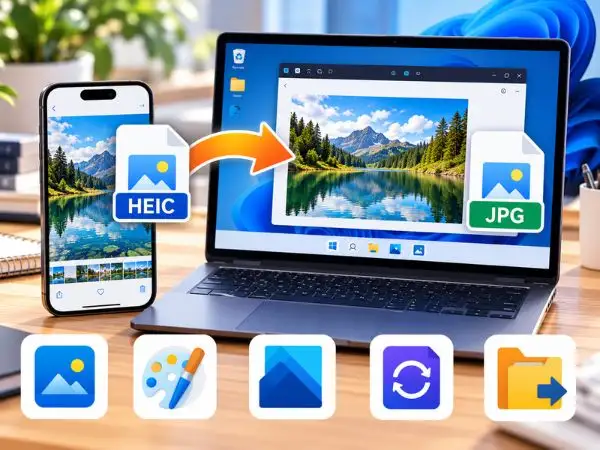
Transferring photos from an iPhone to a Windows PC often leads to a common frustration: thumbnail previews fail to load, and double-clicking a photo triggers the error “The HEIF Image Extension is required to display this file.”
Apple defaults to the HEIC (High Efficiency Image Coding) container format because it compresses images to roughly half the file size of a standard JPEG while retaining superior 16-bit color depth. However, Microsoft Windows does not include native decoding support for HEIC out of the box.
Whether you need to convert a single image or batch-convert hundreds of vacation photos, here are five secure, free ways to convert HEIC to JPG on Windows 11 and Windows 10 without downloading adware or malware.
Quick Comparison: Which Conversion Method Fits You?
| Method | Speed | Batch Conversion? | Extra Software Required? | Best For |
| 1. Microsoft Store Extensions | Instant | View & edit natively | Official Microsoft plugin | Seamless native Windows Photos browsing |
| 2. iPhone Transfer Auto-Setting | Automatic | Yes (during transfer) | None (iOS setting change) | Regular iPhone-to-PC photo transfers |
| 3. Windows Photos App Export | 10 seconds | Single or small groups | Pre-installed Windows app | Quick one-off file conversions |
| 4. Free Desktop Tool (CopyTrans / GIMP) | Fast | Yes (unlimited batch) | Free utility install | Large photo libraries (100+ files) |
| 5. Web-Based Converters (CloudConvert) | Moderate | Yes (limited per day) | None (browser-based) | Converting on a shared or work PC |
Method 1: Install the Official Microsoft Codec (View HEIC Natively)
Instead of manually converting every image to JPG, you can enable Windows 10 and 11 to decode HEIC images, display file thumbnails in File Explorer, and edit them natively inside the Photos app.
- Open the Microsoft Store on your Windows PC.
- Search for and install HEIF Image Extensions (developed directly by Microsoft Corporation; free).
- If your HEIC files contain video motion data (Live Photos) or advanced codec layers, Windows may prompt you for the HEVC Video Extensions.
- Tip: If the Microsoft Store attempts to charge $0.99 for the standard consumer version, search for the official OEM release:
"HEVC Video Extensions from Device Manufacturer", or convert using the free alternative methods below.
- Tip: If the Microsoft Store attempts to charge $0.99 for the standard consumer version, search for the official OEM release:
- Once installed, restart Windows File Explorer. Your HEIC files will immediately display full picture thumbnails and open inside the standard Photos viewer.
Method 2: Configure iPhone to Auto-Convert to JPG During USB Transfer
Prevent future HEIC compatibility issues entirely by letting iOS automatically transcode images to standard JPEG whenever you connect your lightning/USB-C cable to a Windows machine.
iPhone ──> Settings ──> Photos ──> Scroll to "Transfer to Mac or PC" ──> Select "Automatic"
- Unlock your iPhone and open Settings.
- Scroll down and tap Photos.
- Scroll to the bottom section labeled Transfer to Mac or PC.
- Change the selection from Keep Originals to Automatic.
How this works: Your iPhone retains smaller HEIC files internally to preserve phone storage, but whenever photos are copied over a USB cable to a Windows PC, the iOS system automatically converts them to universal .JPG files during the transfer process.
Method 3: Convert Using the Native Windows Photos App
If you have already installed the free HEIF extension or your Windows version can open the image, you can quickly save it as a JPEG:
- Right-click the
.HEICimage and select Open with > Photos. - Click the three horizontal dots (
...) in the top navigation bar (or pressCtrl + S). - Select Save as.
- In the Save as type drop-down menu, choose .JPG or .JPEG.
- Pick your destination folder and click Save.
Method 4: Batch Convert HEIC to JPG for Free (CopyTrans HEIC)
If you have hundreds of photos to convert at once, converting them one by one through the Photos app is impractical. The cleanest free desktop utility for Windows is CopyTrans HEIC for Windows (free for personal use).
- Download CopyTrans HEIC for Windows from its official website.
- Complete the setup wizard.
- Open any folder in File Explorer containing your HEIC files.
- Highlight up to 100 HEIC photos simultaneously.
- Right-click the selected group and click “Convert to JPEG with CopyTrans” directly from the Windows context menu.
- The utility generates duplicate
.jpgfiles in the exact same directory while preserving the original EXIF metadata (camera settings, date taken, and geolocation).
Method 5: Use a Secure Online Browser Converter
If you are on a restricted work laptop where installing software or Microsoft Store extensions is blocked by administrator policies, use a secure web converter.
- Navigate to CloudConvert.com or FreeConvert.com (both enforce 256-bit SSL encryption and wipe uploaded files automatically after processing).
- Click Select File and upload your
.HEICfiles. - Set the target conversion format to JPG.
- Click the gear icon to adjust output quality (recommended: 90% to 95% to preserve details without inflating file sizes).
- Click Convert, then download your processed
.zipfile of JPGs.
also read : – How to Fix Google Drive Storage Full but Empty: 7 Proven Fixes
HEIC vs. JPG: Should You Switch Permanently on iPhone?
If you frequently transfer photos to Windows PCs or upload images to websites that reject HEIC uploads, you can force your iPhone camera to shoot directly in JPEG:
- Go to Settings > Camera > Formats.
- Select Most Compatible (instead of High Efficiency).
High Efficiency  ──> Shoots in HEIC/HEVC (Saves 50% storage space, requires codecs on Windows)
Most Compatible  ──> Shoots in standard JPEG (Larger file sizes, universally compatible everywhere)
Note: Shooting in Most Compatible mode disables certain high-end camera capabilities on newer iPhones, such as 4K 60fps video recording and 10-bit HDR capture, because those formats require the higher bandwidth of HEVC encoding.
Frequently Asked Questions (FAQ)
Is HEIC better quality than JPG?
Yes. Despite having a file size roughly half that of an equivalent JPEG, HEIC supports 16-bit color depth (compared to JPEG’s 8-bit limit). This results in smoother color gradations, fewer banding artifacts in bright skies, and better dynamic range preservation in shadows.
Does converting HEIC to JPG reduce photo quality?
Because JPEG uses lossy compression, converting an image from HEIC to JPG will technically re-compress the pixel data. However, if you keep the export quality setting at 90% or higher, the difference is virtually imperceptible to the human eye on monitors and mobile screens.
Will converting HEIC to JPG delete my photo’s date and location?
Native tools (like the iPhone’s automatic USB transfer and CopyTrans) preserve the full EXIF metadata, keeping the capture date, camera model, and GPS location intact. Some low-quality online converters strip EXIF data to minimize file size, so always verify metadata if photo organization matters to you.
Why does Windows charge $0.99 for the HEVC extension?
The HEVC (H.265) video standard is governed by patent pools requiring licensing royalties for commercial playback. Microsoft passes this patent license fee directly to the consumer for the optional video extension. However, basic HEIC still images can often be decoded using only the free HEIF Image Extensions package from the Microsoft Store.

