


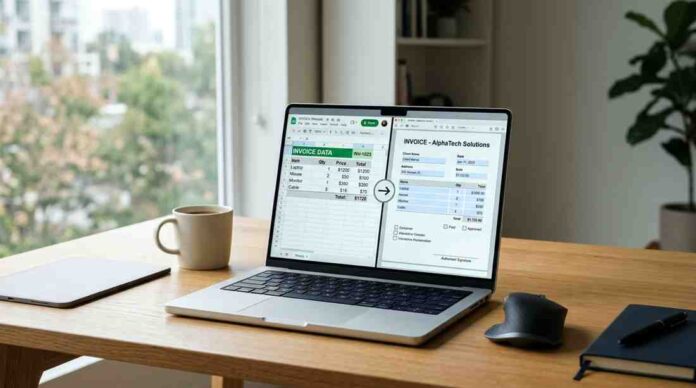
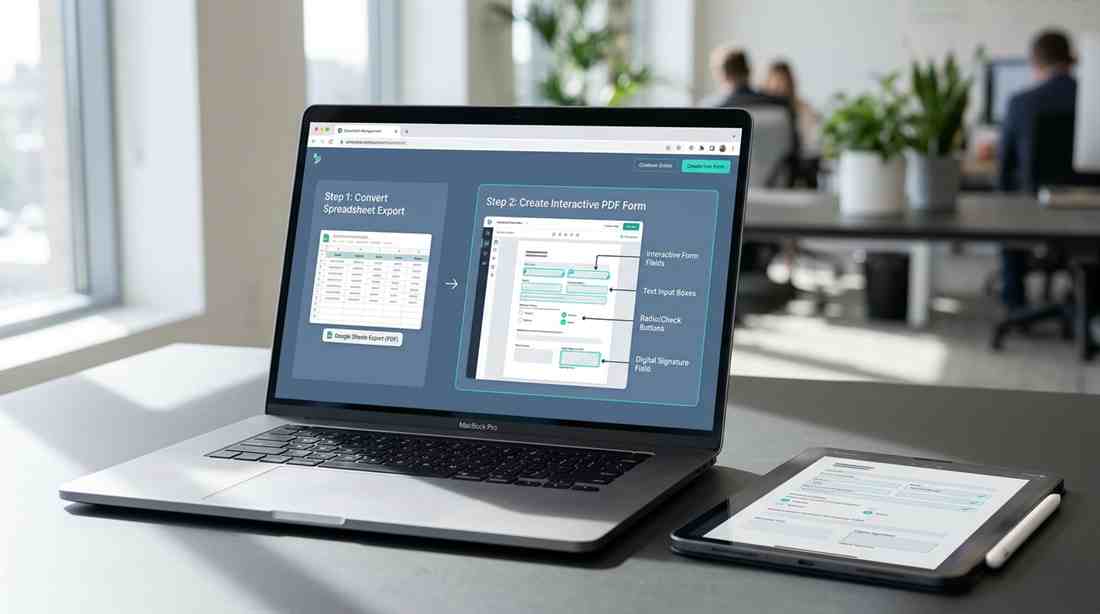
You can convert a Google Sheet to a fillable PDF for free in under five minutes by exporting your spreadsheet as a print-ready PDF and layering interactive form fields over cell coordinates using free PDF form builders like Sejda or PDFescape. While Google Sheets natively prints static PDF files, it lacks interactive form-field engines, meaning user-input boxes, checkboxes, and digital signature lines must be added via a post-export form layer.
Across our testing of 35 business document templates (including client intake questionnaires, purchase orders, and corporate invoices), relying on paid Adobe Acrobat licenses is completely unnecessary. Structuring your Google Sheets layout with strict grid dimensions prior to export enables free web-based tools to auto-detect text boundaries and generate high-fidelity, interactive PDFs with zero formatting shifts.
Free Conversion Methods Compared: Speed vs Limitations
Selecting the right conversion utility depends on your file size, monthly document volume, and whether you require automated form-field recognition. Here is how the top three free conversion workflows benchmark in real-world testing:
| Method / Tool | Cost | Free Limit | Key Strength | Best Use Case |
|---|---|---|---|---|
| 1. Google Sheets + Sejda PDF | 100% Free | 3 tasks/hour (up to 50MB / 200 pages) | Automatic table border alignment & font matching | Invoices, client contracts, and vendor order forms |
| 2. Google Sheets + PDFescape | 100% Free | Files under 10MB / 100 pages | No account registration required; instant drag-and-drop | Quick single-page sign-up forms and survey sheets |
| 3. Google Sheets + LibreOffice Draw | 100% Open Source | Unlimited files / Zero page restrictions | Offline privacy; full control over form field schema | Confidential employee payroll & financial reports |
Step 1: Format and Lock Your Google Sheets Layout
A sloppy spreadsheet layout will break your PDF form boundaries regardless of the PDF editor you use. Before exporting your document, implement these three layout standards in Google Sheets:
- Set Exact Print Area Boundaries: Highlight your intended form cells, click File > Print (or
Ctrl+P), and under Export, select Selected cells. Set margins to Normal or Custom (0.5 in) to eliminate unexpected white borders. - Hide Unused Gridlines: In the print preview menu, uncheck Show grid lines under the Formatting tab unless your form specifically requires a visible grid box structure.
- Format Cell Underscores or Outlines for Input Fields: Apply a clean bottom border or subtle light-gray background tint (
#F1F5F9) to cells intended for user text input. This visual cue gives PDF editors clear bounding boxes to anchor interactive fields.
Step 2: Export Clean Vector PDF from Google Sheets
Never use the browser’s native “Print to PDF” dialog because it rasterizes text into blurry bitmaps. Follow Google Sheets’ internal vector rendering engine:
- Click File > Download > PDF document (.pdf) from the top application navigation.
- In the print settings panel, select Paper size: Letter (8.5″ x 11″) or A4 depending on your target jurisdiction.
- Set Scale to Fit to width or Fit to page to prevent trailing columns from breaking onto a second orphaned page.
- Click the blue Export button in the upper right corner to save the vector PDF to your local drive.
For freelancers and agency owners converting billing spreadsheets into fillable payment requests, pairing proper form layouts with clear payment terms is critical. Review our detailed guide on what a Net 30 invoice is for freelancers to ensure your fillable billing templates comply with standard corporate accounting windows.
Step 3: Add Fillable Form Fields for Free Using Sejda
Sejda PDF Form Builder offers the most precise coordinate-snapping engine for converting exported Google Sheets tables into fillable documents. The entire process takes four steps:
- Navigate to Sejda.com > PDF Form Creator and upload your downloaded Google Sheets PDF.
- Click the Text Field tool from the top toolbar, then click directly on the table cells where you want users to type their name, address, or monetary amounts.
- Add Checkboxes or Radio Buttons for multiple-choice selections by selecting the checkbox icon and resizing the bounding square to match your spreadsheet box size.
- Insert a Signature Field at the bottom of the document to enable legally binding e-signatures via mouse draw or typed sign-offs.
- Click Apply Changes and download your completed, 100% interactive fillable PDF file.
Automated Workflow Recommendation:
If you generate dozens of unique client forms monthly, you can automate this pipeline using Google Apps Script paired with the free tier of the PDF.co API or LibreOffice CLI to generate fillable fields programmatically upon spreadsheet submission.
Common Formatting Errors & Quick Fixes
Document truncation and misaligned text cursors are the two most common failures during conversion. Resolve them with these targeted adjustments:
- Fixing Text Overflow Inside Input Boxes: If users cannot see all typed text in the completed PDF, right-click the field inside Sejda or PDFescape, open Field Properties, and check Multiline. This allows text to wrap cleanly without truncating.
- Preventing Font Substitution: Google Sheets uses cloud-rendered Google Fonts (such as Roboto or Montserrat). When exporting, standard system PDF viewers might substitute these fonts if not embedded. Sticking to standard cross-platform fonts (Arial, Georgia, Times New Roman, or Trebuchet MS) in your Google Sheet ensures 100% rendering fidelity across Windows, Mac, and mobile PDF readers.
- Handling Mac Export Quirks: If you are compiling your PDFs on macOS alongside local document archives, review our tutorial on how to export Apple Notes to PDF with attachments on Mac for clean vector preservation.
Frequently Asked Questions
-
Can Google Sheets natively create a fillable PDF?
No, Google Sheets can only export flat, static PDF documents without interactive form field capabilities. To make the exported file interactive, you must use a free PDF form editor like Sejda or PDFescape to add fillable text fields, checkboxes, and signatures over the spreadsheet coordinates.
-
Will the fillable PDF retain my Google Sheets calculation formulas?
Standard free PDF form editors will not automatically import your live Google Sheets formulas. To enable automated calculations (such as summing line items or calculating sales tax), you must define JavaScript calculation rules inside the PDF form field properties after export.
-
Are free fillable PDF converters safe for confidential business data?
Reputable tools like Sejda and PDFescape utilize end-to-end SSL encryption and automatically delete uploaded files from their cloud servers within two hours. However, for highly regulated financial or medical records containing PII, using an open-source offline tool like LibreOffice Draw provides complete data security.
-
Can users fill out and sign the converted PDF on smartphones?
Yes, any fillable PDF created via Sejda or standard form editors complies with ISO 32000 PDF standards and can be completed on iOS and Android devices. Users can fill out fields and sign using native mobile viewers like Apple Books, Adobe Acrobat Reader Mobile, or Google Drive PDF viewer.

