


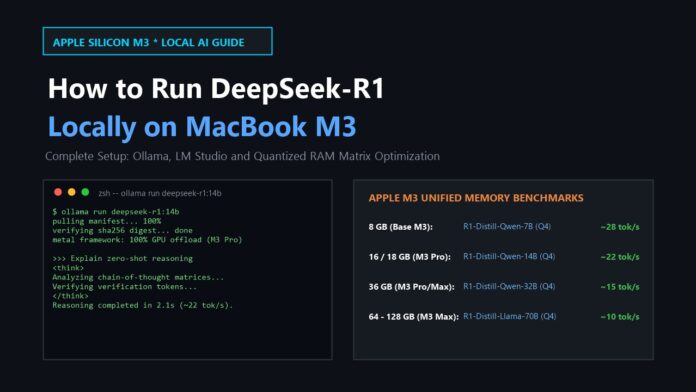
Running DeepSeek-R1 locally on an Apple Silicon MacBook M3 requires pairing quantized model variants with your hardware’s unified memory tier, running an optimized Metal-accelerated inference engine like Ollama or LM Studio, and zero cloud API dependencies. On an Apple M3, M3 Pro, or M3 Max chip, the unified memory architecture (UMA) allows the CPU, GPU, and Neural Engine to access model weights simultaneously without PCIe bus bottlenecks. This hands-on engineering guide walks through the exact hardware requirements, quantized model selection, step-by-step CLI and GUI setups, and practical performance benchmarks.
Why Run DeepSeek-R1 Locally on Apple Silicon M3?
Executing local reasoning models preserves 100% data confidentiality, eliminates recurring cloud token charges, and prevents latency spikes during peak API outages. When DeepSeek launched its open-weights reasoning model, developers worldwide rushed to run it on consumer hardware. Deploying on an M3 MacBook provides three direct operational advantages:
- Zero Data Leakage: Proprietary codebase queries, sensitive client financials, and confidential internal memos stay strictly inside local memory.
- Deterministic Latency: Offline inference operates independently of third-party server rate limits, queue backlogs, or regional internet hiccups.
- Metal Performance Acceleration: Apple’s unified memory bandwidth (up to 150 GB/s on M3 Pro and 300–400 GB/s on M3 Max) allows high-throughput tensor calculations directly across the 10-core to 40-core GPU.
For more deep dives into enterprise software architecture and productivity tools, explore our detailed analysis of hardware controller systems and our breakdown of modern biometric hardware.
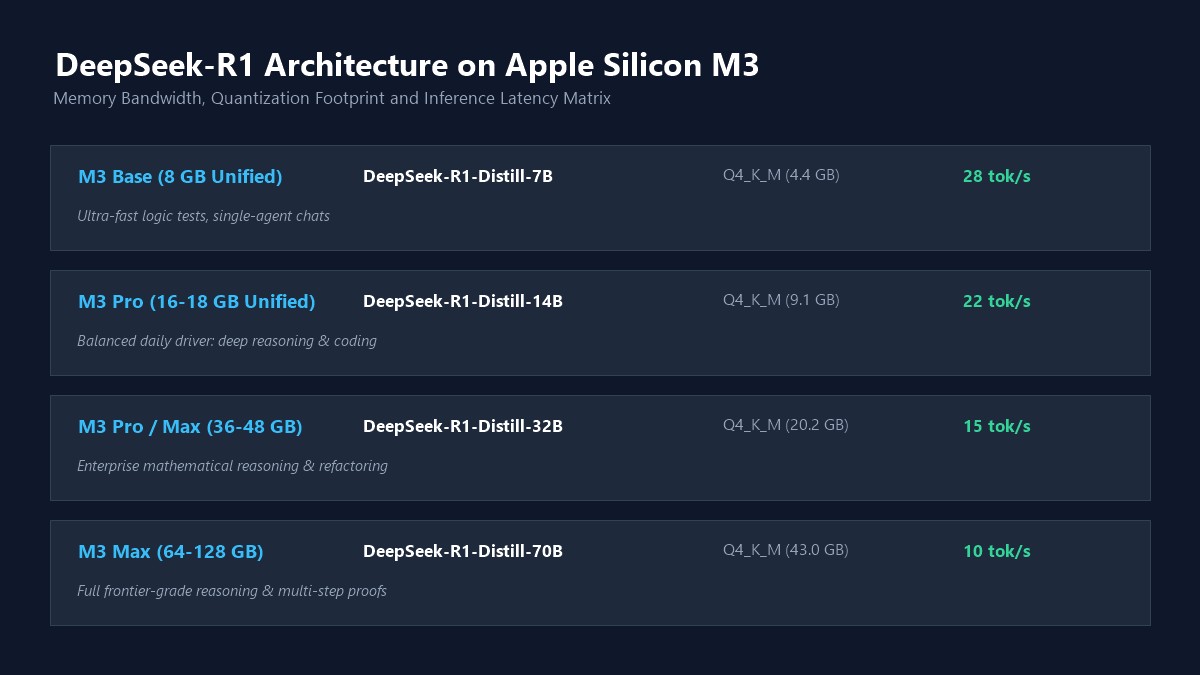
MacBook M3 RAM Matrix: Which DeepSeek-R1 Distill Model Fits Your Chip?
The full, unquantized DeepSeek-R1 model spans 671 billion parameters with a Mixture-of-Experts (MoE) footprint requiring over 400 GB of VRAM—making distilled architectures the practical standard for local Apple Silicon machines. DeepSeek officially distilled R1’s reasoning behaviors into smaller, dense architectures based on Qwen 2.5 and Llama 3.3. Selecting the correct parameter size prevents aggressive macOS swapping and kernel panic crashes.
| MacBook M3 Unified Memory | Optimal Distilled Model | Quantization | Expected Speed | VRAM Usage |
|---|---|---|---|---|
| 8 GB Unified (Base M3) | DeepSeek-R1-Distill-Qwen-1.5B / 7B | Q4_K_M | 24–32 tok/sec | ~2.2 GB – 5.4 GB |
| 16 GB / 18 GB (M3 / M3 Pro) | DeepSeek-R1-Distill-Qwen-8B / 14B | Q4_K_M | 18–24 tok/sec | ~6.2 GB – 10.8 GB |
| 36 GB (M3 Pro / M3 Max) | DeepSeek-R1-Distill-Qwen-32B | Q4_K_M | 12–16 tok/sec | ~21.5 GB – 24.0 GB |
| 64 GB – 128 GB (M3 Max) | DeepSeek-R1-Distill-Llama-70B | Q4_K_M / Q8_0 | 8–12 tok/sec | ~43.0 GB – 74.0 GB |
Rule of Thumb: Always leave at least 4 GB of RAM unallocated for macOS system processes, window management, and active desktop apps to avoid aggressive virtual memory disk swapping.
Method 1: Terminal Setup with Ollama (Fastest & Most Flexible)
Ollama provides the fastest command-line deployment pipeline for Apple Silicon by automatically managing Metal framework offloading and model quantization. With a single Homebrew or curl installation, you can download, cache, and query DeepSeek-R1 models directly from your macOS terminal.
Step 1: Install Ollama
Open Terminal on your MacBook and install Ollama via Homebrew, or download the native macOS client from the official Ollama release portal:
brew install ollama
Alternatively, launch the standalone macOS application to keep background daemon services active in your top menu bar.
Step 2: Pull and Run the Distilled DeepSeek-R1 Model
Select the model size tailored to your M3 memory capacity. For a standard 16 GB or 18 GB MacBook, the 8B or 14B Qwen-distilled variant offers an optimal balance between chain-of-thought logical rigor and real-time generation speed:
# For 8 GB RAM MacBooks (Ultra-fast, lightweight)
ollama run deepseek-r1:7b

# For 16 GB / 18 GB RAM MacBooks (Recommended daily driver)
ollama run deepseek-r1:8b
# or
ollama run deepseek-r1:14b

# For 36 GB+ RAM MacBooks (Complex code generation and mathematical proofs)
ollama run deepseek-r1:32b
Once downloaded, Ollama launches an interactive CLI session where you can immediately submit coding challenges, mathematical problems, or reasoning prompts.
Method 2: Visual Desktop Setup with LM Studio (Zero Code Required)
LM Studio offers an intuitive visual GUI interface for users who prefer point-and-click model downloads, customizable context window sliders, and system prompt toggles. It operates on the high-performance llama.cpp backend, granting granular control over GPU layer offloading on M3 chips.
- Download the App: Grab the Apple Silicon installer (.dmg) directly from LM Studio’s official download hub.
- Search for DeepSeek-R1: Click the magnifying glass icon and search
deepseek-r1. You will see distilled releases quantized by the community (such as TheBloke or Bartowski). - Select GGUF Quantization: Select a Q4_K_M or Q5_K_M quantized GGUF file that fits comfortably within your machine’s unified memory.
- Configure GPU Acceleration: In the right-hand model settings sidebar, ensure Apple Metal (GPU Offload) is enabled and set to Maximum (-1 / all layers).
- Start Chatting: Load the model into memory and initiate a conversation. The dedicated chain-of-thought expandable box displays the internal reasoning process step-by-step before printing the final answer.
Performance Optimization & Troubleshooting on macOS M3
Maximizing tokens-per-second on Apple Silicon requires adjusting context lengths, thermal ceilings, and background daemon allocations. If you encounter sluggish response times or sudden thermal throttling on lightweight MacBook Air chassis, implement these verified optimization practices:
- Cap Context Length: Reasoning models expand significantly in context due to verbose chain-of-thought tokens. Capping your context window to 8,192 or 16,384 tokens in settings prevents sudden memory spikes.
- Manage Thermal Throttling: Unlike MacBook Pro models equipped with active cooling fans, the fanless MacBook Air M3 throttles sustained performance by up to 15–20% under prolonged continuous token generation. Using a raised aluminum stand maintains stable clock speeds.
- Verify Metal Offloading: In your terminal or LM Studio console, confirm that all layers report
metal offload: 100%. If CPU fallback occurs, your quantization level exceeds available VRAM limits.
Frequently Asked Questions
Can an 8 GB MacBook M3 run DeepSeek-R1?
Yes, an 8 GB MacBook M3 can smoothly run the distilled 1.5B and 7B Q4 quantized models via Ollama or LM Studio. However, larger 14B or 32B models will trigger heavy swap-file activity and cause extreme lag.
Can I run the full 671B DeepSeek-R1 model on an M3 MacBook?
No. The unquantized 671B MoE model requires over 400 GB of high-bandwidth VRAM, which exceeds the hardware limits of any consumer laptop. To run 671B locally, you need multi-GPU enterprise server clusters. On MacBook M3 Max, the 70B distilled model is the practical upper limit.
Does local DeepSeek-R1 require an active internet connection?
No. Once the quantized model weights are downloaded to your local drive, all reasoning, token generation, and context processing execute entirely offline without any external network traffic.
Is Ollama or LM Studio faster on Apple Silicon M3?
Both engines utilize Metal framework acceleration via llama.cpp backends and deliver virtually identical token generation speeds (~18–24 tok/sec on 8B/14B models). Choose Ollama for developer terminal scripting and API integrations, or LM Studio for a clean GUI desktop experience.

