
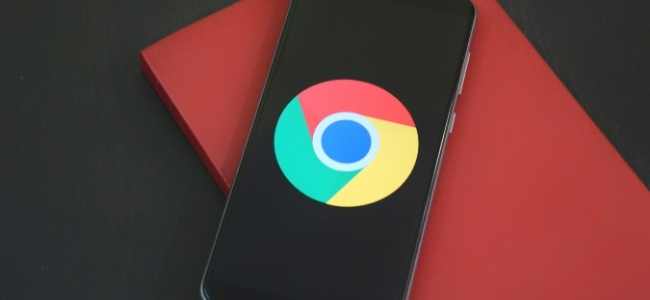
Extensions are software programs built on certain web technologies that allow users to modify the browsing experience of Chrome. These technologies include; HTML, JavaScript, and CSS. In other words, extensions enable users to customize Chrome’s behavior according to their needs. An extension should satisfy a single need that is easily understood. A single extension can incorporate various parts and scope of functionality, as long as everything contributes towards a common goal.
Unlike typical applications, extensions do not depend on web content. Chrome 76 was the first version that introduced extension support. In this version, all extensions directly displayed on the Google Chrome toolbar. In the more recent versions of the browser, users have options to choose which extensions they want to show on the Chrome toolbar and which ones they want to hide.
Declutter Your Toolbar by Hiding Chrome Extension Icons
Whereas most Chrome extensions modify the user experience positively, some developers create extensions that do not serve the intended purpose. For instance, adware developers may interfere with your user experience by secretly installing malicious Chrome extensions that inject advertisements to a web page that you’re viewing or modify your search provider to a site under their control.
Modern browsers work relatively well with extensions written using JavaScript. That means that JavaScript is a very significant component of building extensions and an essential aspect of modern websites. At this site, you will learn more about how to enable JavaScript in your browser and enjoy a top-notch browsing experience.
Where Do Your Installed Extensions Go?
If you have already upgraded your Google Chrome browser to the latest version on the main toolbar, you might have noticed the new “Extensions” menu button. That new jigsaw puzzle piece icon displayed on the main toolbar represents extensions. If you click on this icon, it will instantly show all installed extensions in your Google Chrome browser. You can see the Pin/Unpin extensions option and the Remove and Access extensions options. You can also see the Manage Extensions option on the menu. From this option, you can easily access the main Extensions page directly.
The extensions menu also indicates whether currently installed extensions have full access or no access on the web page. Extensions with full access can customize the web page, while those with no access will remain dormant until the user grants them access.
Before we get started, ensure that you have updated your Google Chrome browser to the latest version. When you’re all set, follow these steps meticulously.
Put Your Google Chrome Extensions Under Control
Open your Chrome browser. Click on the Extensions icon (jigsaw puzzle piece) on the far right, next to your profile avatar. A dropdown showing all extensions installed and enabled will appear. You’ll notice that they are classified into two categories: Access Requested and Full Access.
Next to each extension, you will see a Pin/Unpin extension icon. If the icon is white, that means the extension is hidden. If it is blue, that means the extension is pinned on the main toolbar of your browser.
Click the Unpin icon on all extensions that you want to hide. They will instantly disappear from the Chrome toolbar. Note that unpinning an extension doesn’t make it inactive. You can click on the Extensions icon again and activate the extension you want to interact with.
Final Remarks
Chrome extensions have come a long way, and you never know what changes will be introduced with time. Generally, extensions make our user experience smooth and more comfortable by optimizing our everyday tasks or improving our web surfing experience. If you ever thought, “There has to be an easier way to do this,” we’re pretty sure there’s an extension out there for that!

