


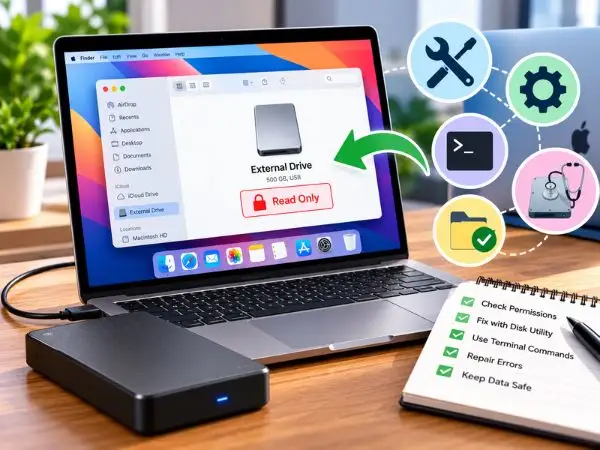
Plugging an external hard drive or USB flash drive into your Mac only to discover you cannot drag files, create new folders, or edit documents is a widespread macOS issue. When you inspect the drive under Get Info, macOS reports: “You can only read.”
Formatting the drive erases everything stored on it, which is not an option when you have gigabytes of essential files and no secondary backup drive handy.
You can fix a read-only drive without deleting a single file. Understanding why macOS locks the drive allows you to apply the appropriate fix: adjusting permission flags, mounting an NTFS file system for full write access, or repairing dirty disk sectors via Disk Utility.
Why Is Your External Hard Drive Read-Only on Mac?
macOS locks an external storage device into read-only mode for three primary reasons:
                      ┌── 1. Formatted as Windows NTFS (macOS can read, but cannot natively write)
                      │
Why Drive Is Locked ──┼── 2. Permission Settings Conflict (macOS user account lacks write authorization)
                      │
                      └── 3. Corrupt File System / "Dirty Bit" (Drive was unplugged without safe eject)
How to Check Your Drive’s File System
- Connect your external hard drive to your Mac.
- Open Finder, right-click your drive icon in the sidebar (or on your desktop), and select Get Info (or press
Command + I). - Under the General section, inspect the Format:
- If it says Windows NT File System (NTFS), macOS does not support native write operations. Go to Solution 1.
- If it says APFS, Mac OS Extended (HFS+), or exFAT, your drive is suffering from access permissions or minor file system errors. Go to Solution 2 or 3.
Quick Reference: Comparison of Fix Methods
| Method | Root Cause Addressed | Data Erased? | Cost | Technical Difficulty |
| 1. Third-Party NTFS Driver | NTFS Windows Format | No | Free trial / ~$15–$20 | Beginner (1 click) |
| 2. Ignore Ownership Settings | Mac Permissions Mismatch | No | Free | Beginner (1 click) |
| 3. Disk Utility First Aid | File System Corruption / Dirty Bit | No | Free | Beginner |
| 4. Terminal Command Mount | System Flag Lockout | No | Free | Intermediate |
| 5. ExFAT Conversion (Non-Destructive) | Long-term cross-platform sharing | No (using intermediate backup) | Free | Intermediate |
Solution 1: If the Drive Format is NTFS (Windows NT File System)
Apple macOS can natively read files stored on an NTFS-formatted drive, but it blocks write permissions by default to avoid patent licensing conflicts with Microsoft. You can view, copy, and download files from the drive, but you cannot edit, rename, delete, or save new files directly onto it.
To gain complete read and write access without formatting the drive, use one of the following methods:
Option A: Use a Professional NTFS for Mac Driver (Recommended for Stability)
Specialized file system drivers integrate seamlessly with the macOS kernel, enabling transparent write, modify, and delete operations on NTFS volumes just like native Mac drives.
- Download a certified macOS NTFS utility such as Paragon NTFS for Mac or Tuxera NTFS.
- Run the installer and grant the necessary security extensions under System Settings > Privacy & Security.
- Restart your Mac.
- Reconnect your external drive. It will mount automatically with full read-write capabilities.
Option B: Free & Open-Source Solution (FUSE for macOS via Terminal)
For technical users who prefer not to buy commercial software, an open-source driver can be installed using Homebrew:
- Open Terminal from Applications > Utilities.
- Install Homebrew (if not already installed), then install the open-source NTFS-3G driver:Bash
brew install --cask macfuse brew install ntfs-3g-mac - Mount the drive manually in read-write mode via Terminal commands.(Note: Whenever Apple releases a major macOS update, open-source kernel extensions often require manual re-configuration, making commercial utilities more practical for non-technical users).
Solution 2: Change Permissions / Ignore Ownership on this Volume
If your drive is already formatted as Mac OS Extended (HFS+) or APFS, but still shows “You can only read,” your current macOS user profile does not possess write privileges for the volume.
External Drive (Get Info) ──> Sharing & Permissions ──> Check "Ignore ownership on this volume"
- Right-click the external hard drive icon and click Get Info (
Cmd + I). - Scroll to the bottom and click the Sharing & Permissions drop-down arrow.
- Click the Lock icon in the bottom-right corner and enter your Mac administrator password or use Touch ID.
- Locate the checkbox labeled “Ignore ownership on this volume” at the very bottom and check it.
- If the checkbox is unavailable, change the privilege next to your user name or Everyone from Read only to Read & Write.
- Click the small circular gear icon (or three dots) and select Apply to enclosed items to cascade the write permissions across all subfolders.
Solution 3: Repair Corrupt File System via First Aid
If an external storage device is disconnected without clicking “Eject” first, macOS marks the drive’s file system header with a “dirty bit” (an integrity flag signaling potential corruption). To safeguard your data against structural loss, macOS automatically mounts the volume in read-only mode.
You can clear this flag and restore normal write permissions using macOS Disk Utility:
- Press
Command + Spaceto launch Spotlight, type Disk Utility, and press Enter. - In the top-left menu of Disk Utility, click View > Show All Devices.
- Select your external hard drive from the left sidebar.
- Click the First Aid button on the top toolbar.
- Click Run and confirm.
- Disk Utility will scan the partition tables, rebuild catalog files, resolve index discrepancies, and clear the read-only safety lock. Once completed, unmount and reconnect your drive.
also read : – How to Fix Google Drive Storage Full but Empty: 7 Proven Fixes
Solution 4: Fix Read-Only Lock Using Terminal (Force Remount)
If Disk Utility cannot clear the lock because a background process is holding the drive hostage, you can force macOS to unmount and remount the drive cleanly via Terminal.
- Open Terminal (
Applications > Utilities > Terminal). - Run this command to list all attached storage drives:Bash
diskutil list - Locate the identifier of your external drive (e.g.,
disk2s1ordisk3s2). - Force an unmount of the volume:Bash
diskutil unmount /dev/disk2s1 - Run the native macOS disk verification and repair tool directly from the command line:Bash
sudo fsck_hfs -fy /dev/disk2s1(Replacefsck_hfswithfsck_exfatif your drive is formatted as exFAT, and replacedisk2s1with your actual disk identifier). - Once the repair finishes with
"Volume was repaired successfully", remount your disk:Bashdiskutil mount /dev/disk2s1
Long-Term Recommendation: Formatting to exFAT Without Data Loss
If you share files between Windows PCs and Mac computers on a daily basis, exFAT is the optimal cross-platform format. It allows seamless, native read-and-write access on both operating systems without third-party drivers or file size limitations.
To transition to exFAT without losing any data:
- Temporarily copy all files from your external drive to your Mac’s internal storage or a cloud account (Google Drive, OneDrive).
- Open Disk Utility, select your external hard drive, and click Erase.
- Name your drive, set the format to exFAT, and set the Scheme to GUID Partition Map.
- Click Erase.
- Once complete, copy your files back to the drive. You now have permanent read-write capability on both Mac and Windows computers.
Frequently Asked Questions (FAQ)
Why can I read files on my external hard drive on Mac but cannot write or edit them?
This almost always indicates the drive is formatted with the Windows NTFS file system. macOS natively includes read capabilities for NTFS so you can view and copy files, but writing, renaming, and deleting files are restricted by Apple without dedicated NTFS software.
Will running First Aid in Disk Utility delete any of my files?
No. Disk Utility’s First Aid feature checks and repairs structural file system directory maps, volume headers, and invalid permissions. It does not delete, overwrite, or reformat user files.
Why is the “Ignore ownership on this volume” checkbox missing or greyed out?
The “Ignore ownership” option is only available on drives formatted with Apple-native file systems (APFS or Mac OS Extended / HFS+). If your drive is formatted as NTFS, MS-DOS (FAT32), or exFAT, the checkbox will not appear because those file systems manage file permissions differently.
Can I change my drive from NTFS to exFAT without deleting files?
No native direct-conversion tool can convert an NTFS drive to exFAT without reformatting the partition. To change formats safely, copy your files to a secondary location (such as your Mac desktop or cloud storage), format the drive to exFAT in Disk Utility, and move the files back.

