



To export Apple Notes to PDF with attachments on a Mac without truncating images, you must set all note attachments to “View as Large Images” before executing native export or printing via macOS Quartz. By default, macOS Notes renders photos and embedded documents as compressed thumbnail badges. If exported in thumbnail view, the resulting PDF contains low-resolution icons rather than readable content. Converting attachments to full-bleed view guarantees that photography, scanned receipts, digital sketches, and checklists render at 100% native resolution.
For complex notes containing multi-page PDF attachments, nested audio memos, or bulk folders of hundreds of entries, native macOS commands export only the first preview page of embedded documents. In these scenarios, utilizing macOS Print dialog routing, AppleScript batch scripts, or specialized open-source exporters ensures 100% data preservation. Below is the complete, tested technical guide to exporting Apple Notes to PDF with all attachments intact across macOS Sequoia, Sonoma, and Ventura.
The 30-Second Quick Fix for Single Notes
Open the note in Apple Notes on your Mac. Right-click any image, navigate to View as, and select Set All to Large. Then navigate to File > Export as PDF…, select your destination folder, and click Save. Your PDF will generate with full-resolution inline visuals and intact typography.
Why Apple Notes Truncates Attachments During PDF Export
Apple Notes treats embedded attachments as interactive objects rather than static document pages. When you insert a photo, drawing, or multi-page PDF into a note, the macOS CloudKit database engine stores the asset in a local CoreData directory (~/Library/Group Containers/group.com.apple.notes/).
When you trigger File > Export as PDF, the Notes rendering engine applies a strict “What You See Is What You Get” (WYSIWYG) capture of the active viewport. If an attachment is set to “Small Image” or “Thumbnail,” macOS prints the literal thumbnail box. Furthermore, if you attach an external 10-page PDF document inside a note, Apple Notes treats that PDF as an embedded file icon or a single-page card; exporting the parent note captures only page one of the attachment.
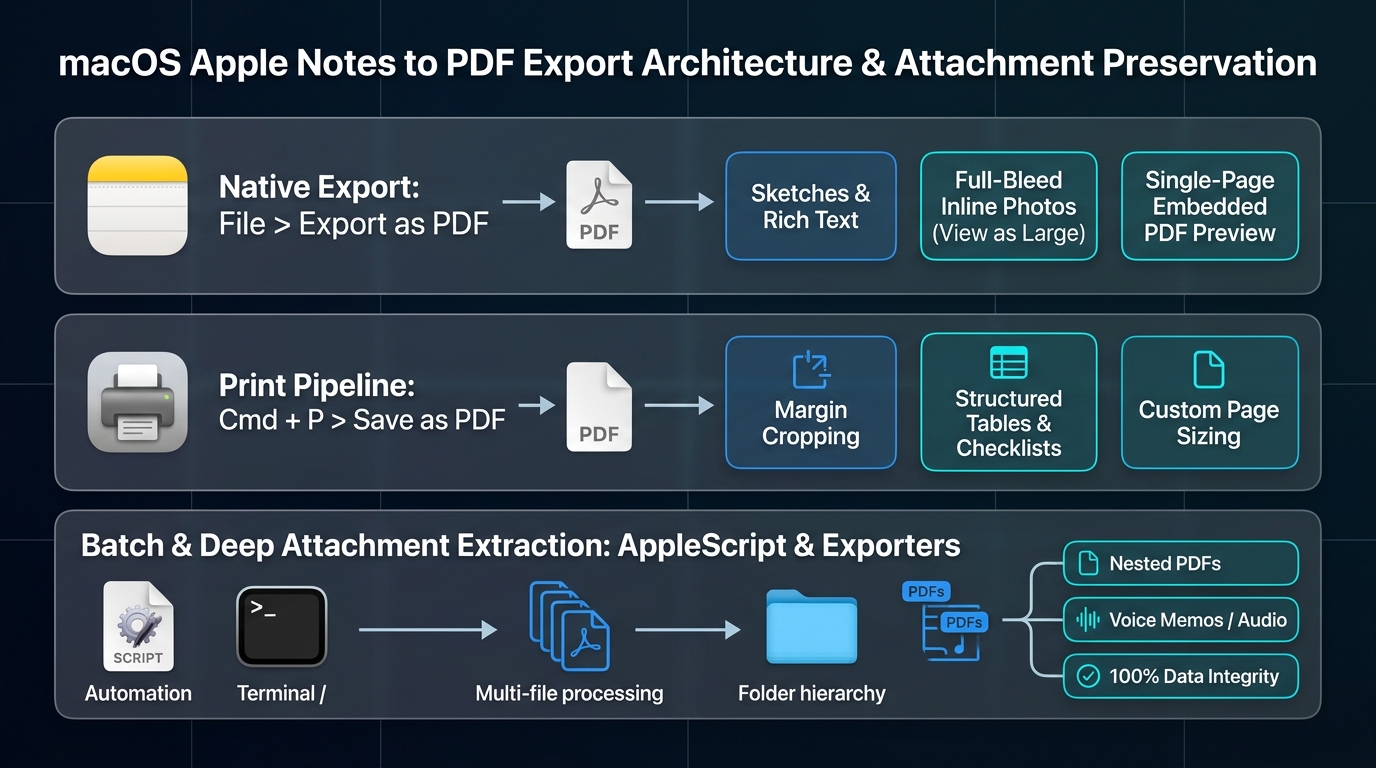
Figure 1: Comprehensive comparison of Apple Notes export methods across native menus, Print engine, and batch utilities.
Method 1: Native “Export as PDF” with Large Image Pre-Formatting
This is the optimal method for notes containing photos, screenshots, sketches, and standard document scans. By instructing Apple Notes to expand every graphical asset before rendering, you force the vector print engine to capture full-resolution data.
Step-by-Step Execution:
- Launch the Notes app on your Mac and click on the target note in your sidebar.
- Scroll to any embedded image, diagram, or scan inside the note body.
- Control-click (right-click) directly on the image to open the context menu.
- Hover your cursor over View as and select Set All to Large. Every inline attachment in the note will instantly expand to full-column width.
- Navigate to the top macOS menu bar and click File > Export as PDF… (or Export To > PDF depending on macOS version).
- Name your PDF document, choose a local destination directory (such as Desktop or Documents), and click Save.
Pro-Tip for Page Breaks:
Large images can occasionally cause awkward page breaks in the resulting PDF. If an image cuts across a margin boundary, open the generated PDF in macOS Preview, or use the Print Dialog method below to calibrate pagination.
Method 2: The macOS Print Dialog Pipeline (Cmd + P > Save as PDF)
When notes contain formatted tables, checklist bullets, and rich web snippets, the macOS Print subsystem delivers superior margin and pagination control compared to native export. The Quartz 2D graphics engine used in the print workflow recalculates page breaks dynamically to prevent cutting images in half.
- Select your target note in the Apple Notes interface.
- Press Command + P simultaneously on your keyboard (or click File > Print…).
- In the system Print dialog preview, verify your page layout and orientation.
- Ensure the checkbox for Print Backgrounds is marked if your note uses custom colored formatting or dark canvas elements.
- Look at the bottom dropdown menu adjacent to the Cancel button that reads PDF.
- Click the dropdown and select Save as PDF….
- Fill in the Title, Author, and Subject metadata fields if desired, then click Save.
Method 3: Preserving Nested Multi-Page PDFs and Embedded Files
If your Apple Note contains an embedded multi-page PDF contract or non-image files (audio recordings, ZIP archives, spreadsheets), neither Method 1 nor Method 2 will render the entire nested file contents inside the exported PDF.
To produce a comprehensive, unbroken master document containing your note text and complete multi-page attachments, execute the Preview Merge Workflow:
- Export the parent Apple Note to PDF using Method 1 or Method 2.
- Inside the Apple Notes app, double-click the attached multi-page PDF to launch it inside macOS Preview (or drag the attachment directly onto your Desktop).
- In Preview, open the parent note PDF you exported in Step 1.
- Click View > Thumbnails in Preview’s top menu bar (Option + Command + 2) to reveal the sidebar thumbnail strip.
- Drag the thumbnail pages of your multi-page attachment directly into the sidebar of the parent note PDF at the exact position you want them inserted.
- Press Command + S to save. You now have a unified, fully searchable master PDF containing both your rich note text and full multi-page document attachments.
Method 4: Batch Exporting Folders with Third-Party Tools & Scripts
Apple provides no native mechanism to select 50 or 500 notes and export them to PDF simultaneously. Attempting to select multiple notes disables the “Export as PDF” menu option. For bulk archiving, data migration, or enterprise compliance, two automated solutions eliminate repetitive manual labor:
1. “Exporter” for Apple Notes (Mac App Store)
Developed by Chintan Ghate, this lightweight utility scans your local Apple Notes SQLite database. With a single click, it exports entire folders into structured Markdown or HTML files while automatically saving every high-resolution photo, audio memo, and document attachment into a linked /attachments directory, which can then be converted to PDF via standard tools.
2. Open-Source AppleScript Automation
For power users comfortable with macOS Terminal or Script Editor, open-source AppleScript wrappers automate the print pipeline across entire folders. By running a loop that queries tell application "Notes", the script iterates through every note in a specified folder, sets attachment views to maximum dimensions, and outputs individual timestamped PDFs into a target directory automatically.
Feature Matrix: Apple Notes Export Methods Compared
Review the comparison below to select the right approach for your specific document structure:
| Export Method | Inline Images / Photos | Multi-Page PDF Attachments | Batch Processing |
|---|---|---|---|
| Native Export as PDF | Yes (Set to Large Image) | First page only | No (Single note only) |
| Print Dialog (Cmd + P) | Yes (Better page breaks) | First page only | No (Single note only) |
| Preview Merge Workflow | Full 100% resolution | 100% All Pages Merged | Manual per document |
| Third-Party Exporter / Script | Full extraction | Extracted as raw files | Yes (Unlimited batch) |
For knowledge workers managing digital document workflows and database pipelines, reviewing our complete technical guide on exporting databases without formatting degradation provides valuable structured data insights.
Frequently Asked Questions (FAQ)
-
Why are my images exported as tiny icons in Apple Notes PDF?
Your images appear as small icons because their display view was set to “Small Image” or “Thumbnail” inside the note. Apple Notes exports PDFs using exact viewport reproduction. To fix this, right-click any image, hover over “View as,” and select “Set All to Large” before exporting.
-
Can I export all pages of an attached PDF inside an Apple Note?
No, the native “Export as PDF” feature only captures the first page of embedded PDF attachments. To preserve every page, double-click the attachment to open it in macOS Preview, export the parent note, and drag the attachment pages into the note PDF’s thumbnail sidebar.
-
How do I batch export multiple Apple Notes to PDF at once?
Apple Notes does not natively support batch PDF exporting, requiring third-party tools or AppleScript. You can use free Mac App Store utilities like “Exporter” or custom AppleScript automation to iterate through entire folders and compile them into individual PDFs.
-
Will exporting Apple Notes to PDF preserve clickable hyperlinks?
Yes, both native “Export as PDF” and the Print dialog pipeline preserve clickable URLs and internal note links. The macOS Quartz PDF rendering engine automatically converts standard web URLs and rich link previews into functional PDF hyperlinks.

