


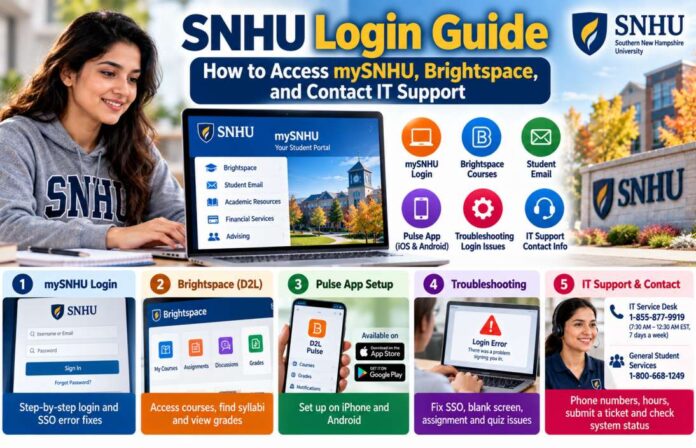
Having trouble with your SNHU student login? A single sign-on (SSO) error can block access to your courses, student email, grades, and other university services.
Southern New Hampshire University (SNHU) uses mySNHU as its main student portal. Through it, students can reach Brightspace, student email, billing tools, and other academic services.
This guide explains how to log in, fix common authentication errors, reset your password, use Brightspace, set up mobile access, and contact the IT Service Desk.
How to Access the mySNHU Student Portal
The official mySNHU portal is my.snhu.edu. Use your SNHU login details rather than a personal email account.
SNHU requires multi-factor authentication (MFA) when students access university systems. Depending on your account setup, you may need to approve a sign-in or enter a verification code. (SNHU technical requirements)
Step-by-Step Login for Online and Campus Students
Follow these steps to access mySNHU:
- Open the official mySNHU login page.
- Select the student category that matches your learning model.
- Enter your SNHU username or email address as requested.
- Enter your SNHU password.
- Complete the MFA prompt if one appears.
- Wait for the portal dashboard to load.
- Select Brightspace, SNHU Webmail, or another service you need.
New students may need to create their password before the first login. Use the “create/reset password” link on the official login page and follow the prompts. Access to some pages may depend on your enrolment status. (SNHU accepted student instructions)
Tip: Bookmark the official mySNHU sign-in page, not an old page deep inside the portal. This can help avoid stale login links and repeated redirects.
Troubleshooting Single Sign-On (SSO) and Blank Screen Errors
An SSO error means the sign-in process failed before the requested university service opened. It may result from incorrect credentials, an expired browser session, blocked cookies, or a temporary service issue.
Try these steps in order:
1. Check your credentials.
Confirm that you are entering the correct SNHU account details. Check for typing errors and make sure Caps Lock is off.
2. Open a private browsing window.
Try signing in through an Incognito window in Chrome or a private window in Firefox, Edge, or Safari. If this works, an old browser session may be causing the problem.
3. Clear your browser cache and cookies.
Old cookies can cause repeated redirects or prevent a sign-in page from loading. Clear the browser data for SNHU sites, close the browser, and try again. SNHU’s login troubleshooting guide also recommends clearing cached data and trying another browser. (SNHU login troubleshooting)
4. Check pop-ups and extensions.
Temporarily disable extensions that block scripts, cookies, or pop-ups. Allow the necessary site permissions, then reload the login page.
5. Try another supported browser or device.
Use an updated browser on a laptop or desktop. This can help identify whether the problem is tied to your current device.
6. Check SNHU’s system status.
Visit the SNHU system status page to check for reported issues with mySNHU, Brightspace, email, or related services. If a service is down, repeated password resets may not solve the problem. (SNHU Brightspace access help)
If the same SSO error remains after these steps, contact the IT Service Desk at 1-855-877-9919.
Setting Up Two-Factor Authentication (2FA)
SNHU requires multi-factor authentication (MFA) for access to university systems. This adds a verification step beyond your password. Depending on the setup assigned to your account, you may be asked to approve a notification or enter a code. (SNHU technical requirements)
If SNHU’s sign-in process asks you to use Microsoft Authenticator, follow the on-screen setup instructions:
- Install Microsoft Authenticator from your device’s official app store if required.
- Sign in to the SNHU account setup flow on your computer.
- Follow the instructions to add the account to the authenticator app.
- Approve the test notification or enter the code requested.
- Complete the setup and test another sign-in.
The exact setup can vary, so use the method offered by SNHU for your account. Do not approve a sign-in request you did not start.
If you replace your phone, lose access to the authenticator, or cannot receive verification codes, use the university’s official account recovery instructions or contact IT. Do not share your password or verification code with anyone who contacts you unexpectedly.
Navigating SNHU Brightspace (D2L) Courses
Brightspace is SNHU’s online learning platform. Students use it to find course modules, syllabi, assignments, discussions, grades, and announcements.
You can open it through mySNHU or use the official
Accessing Courses, Syllabi, and Discussion Boards
After logging in:
- Open Brightspace from mySNHU, or go directly to learn.snhu.edu.
- Select the course you want to view.
- Open the course content or learning modules section.
- Look for the Start Here module, course overview, or syllabus.
- Check instructor announcements and assignment instructions.
- Open discussions, quizzes, and other learning activities from the course menu.
Your course may not appear before the date when access is scheduled to begin. If you have registered but cannot see a course, check your course start date and enrolment details first.
If the course should be available but remains missing, ask your academic advisor or instructor to confirm your registration. Contact IT if the problem appears to involve login access rather than course enrolment.
Setting Up the Brightspace Pulse App for Mobile Access
Brightspace Pulse is a mobile app that can help students review course updates, upcoming deadlines, and notifications.
To connect the app:
- Download Brightspace Pulse from the Apple App Store or Google Play.
- Open the app and search for Southern New Hampshire University or SNHU.
- Select the correct institution if it appears.
- Follow the sign-in steps shown by the app.
- Complete SNHU’s MFA prompt if requested.
- Review the course list and notification settings.
Menu names and sign-in options can vary with app versions. If the app cannot connect to your account, try opening Brightspace in a browser first. If browser access also fails, check SNHU’s system status and login support pages.
Use a computer for important coursework. SNHU describes the mobile app as an additional way to access coursework, while a desktop or laptop should remain your main device for study tasks.
Resolving Assignment Submission and Quiz Loading Errors
If an assignment will not submit or a quiz fails to load, first check whether the issue affects one course or all of Brightspace.
For assignment uploads:
- Confirm that you are submitting to the correct assignment.
- Check the accepted file type and size shown in the assignment instructions.
- Make sure the file has finished uploading before leaving the page.
- Look for a submission confirmation or receipt.
- Save a copy of your work before trying again.
Do not assume that every assignment accepts the same file types or upload limits. Follow the instructions for that specific task.
For quizzes that will not load:
- Refresh the page if it is safe to do so and no timed attempt will be lost.
- Try an updated browser such as Chrome, Firefox, or Edge.
- Clear browser cache and cookies if the issue persists.
- Check your internet connection.
- Check the SNHU system status page for a reported Brightspace issue.
If a timed quiz is affected, contact your instructor as soon as possible. Include the course name, quiz title, the time the problem occurred, and a screenshot of the error if available. If you cannot access Brightspace itself, contact IT as well.
SNHU IT Service Desk Contact and Support Information
The IT Service Desk helps with technical issues involving mySNHU, student email, Brightspace, and other university systems.
SNHU Technical Support Phone Numbers
Use the contact details below to reach the right team.
| Support Service | Contact | Published Hours |
|---|---|---|
| SNHU IT Service Desk | 1-855-877-9919 | 7 days a week, 7:30 a.m.–12:30 a.m. Eastern Time |
| IT support email | servicedesk@snhu.edu | For technical support requests |
| General SNHU contact / admissions | 1-800-668-1249 | Mon–Fri, 8 a.m.–8 p.m.; Sat–Sun, 9 a.m.–8 p.m. Eastern Time |
| Online academic advising | 877-591-4723 | Contact the advising team for academic questions |
The IT Service Desk is not a 24/7 phone service. Its published hours are 7:30 a.m. to 12:30 a.m. Eastern Time, seven days a week. General admissions and student enquiries use a separate contact route.
For a login error, use the IT Service Desk rather than the admissions number. For questions about your course registration or academic plan, contact your academic advisor.
Submitting an IT Ticket and Checking Live System Status
If you cannot call, SNHU provides online support options.
To submit an IT ticket:
- Open the SNHU IT Service Desk portal.
- Sign in if the portal asks you to do so.
- Choose the relevant technical support option.
- Describe the issue and the service affected.
- Include the error message, time of the problem, browser, and device details.
- Submit the request and keep any confirmation number.
Some support forms may require you to sign in. If your login failure also blocks the support portal, call the IT Service Desk during its published hours.
To check for an outage:
- Open the SNHU system status page.
- Look for mySNHU, Brightspace, email, or the service you cannot access.
- Read any incident or maintenance notice.
- If no issue is listed and the problem continues, contact IT.
A status page can help you tell whether a problem is widespread or limited to your account. Do not share passwords, MFA codes, or sensitive student data in a public support forum.
Quick Troubleshooting Checklist for mySNHU and Brightspace
If you need access quickly, follow this checklist:
- Use the official mySNHU portal.
- Confirm that your SNHU password is correct.
- Complete the MFA step when requested.
- Try a private browser window.
- Clear SNHU-related cookies and cache.
- Try another updated browser.
- Check the official Brightspace portal.
- Confirm your course start date and enrolment.
- Check the SNHU system status page.
- Contact IT at 1-855-877-9919 if the problem remains.
Final Thoughts
The mySNHU portal is the main entry point for SNHU students, while Brightspace holds course materials, assignments, discussions, and grades.
Most access issues are worth checking in a simple order: confirm your credentials, complete MFA, clear the browser session, try another browser, and check for a reported outage.
If those steps fail, contact SNHU’s IT Service Desk. Keep the error message and details about your device ready so the support team can narrow down the problem.
For the most reliable instructions, use the official SNHU login, Brightspace, and support pages linked in this guide.

