


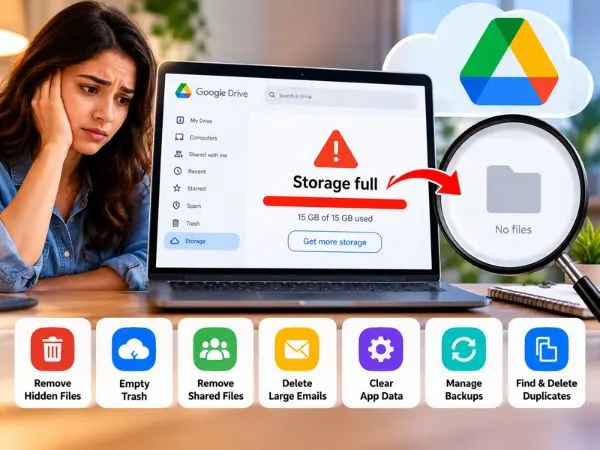
Getting the dreaded “Storage full — you can no longer upload or receive emails” alert is frustrating, especially when you have already spent time deleting dozens of large videos and documents.
If your Google Drive appears nearly empty but your quota meter still shows 15 GB of 15 GB used, your account is affected by hidden data sinks, unemptied server-side trash bins, or orphaned files.
Here is how Google’s shared cloud quota actually works and the exact steps to locate and reclaim your missing space.
Why Google Drive Shows Full When It Looks Empty
The free 15 GB allowance is shared across three separate services, not just Google Drive:
[Google Drive Files & Backups] + [Gmail & Attachments] + [Google Photos & Videos]
                                      │
                                      ▼
                        Shared 15 GB Google Account Quota
Deleting files from Google Drive does not reduce your storage quota if:
- Deleted files are sitting in the Trash / Bin (they still count against your quota for 30 days).
- WhatsApp, games, or third-party web apps are storing gigabytes of hidden app data.
- Files have become “orphaned” (their parent folder was deleted, but the files still exist in a hidden state).
- Years of old Gmail attachments or 4K phone video backups in Google Photos are consuming your quota.
1. Check Your Real Storage Breakdown
Before deleting anything, identify which service is actually consuming your storage.
- Open your browser and go to one.google.com/storage.
- Review the breakdown:
- Google Drive: Documents, PDFs, and uploaded files.
- Gmail: Emails, spam, and heavy attachments.
- Google Photos: Pictures and recorded videos.
Focus your cleanup efforts on the category that occupies the largest percentage of your 15 GB.
2. Empty All Three Hidden Trash Bins
Files moved to the trash continue consuming quota until they are permanently purged. Purging is required across all three services:
- Google Drive: Go to
drive.google.com$\rightarrow$ Click Trash in the left sidebar $\rightarrow$ Click Empty trash in the upper right $\rightarrow$ Confirm Delete forever. - Gmail: Go to
mail.google.com$\rightarrow$ Click More in the left sidebar $\rightarrow$ Open Trash (and Spam) $\rightarrow$ Click Empty Trash now. - Google Photos: Go to
photos.google.com$\rightarrow$ Click Trash on the left menu $\rightarrow$ Click Empty trash.
3. Find and Delete “Orphaned Files”
An orphaned file occurs when you upload a file into a shared folder, and the owner later deletes the folder, or when folder sync encounters errors. The parent folder disappears, but the file remains hidden in your account, silently taking up quota.
To surface and delete these hidden files:
- Open Google Drive in your web browser.
- In the top search bar, paste the following search operator and press Enter:Plaintext
is:unorganized owner:me - Any files that appear are orphaned. Review them, right-click any unneeded items, and select Move to Trash, then empty your trash.
4. Clear Hidden Third-Party App Data
Many mobile apps, desktop backup utilities, and messenger apps (like WhatsApp) back up configuration data and database files to Google Drive without displaying them in your standard file directory.
Google Drive Web ──> Gear Icon (Settings) ──> Settings ──> Manage Apps
- On
drive.google.com, click the Gear Icon in the top-right corner and select Settings. - Click Manage Apps in the left sidebar.
- Scroll through the connected apps. Look for entries that indicate storage usage (e.g., “Hidden app data: 2.4 GB”).
- Click Options next to the application and choose Delete hidden app data.
- Disconnect any legacy apps or old mobile games you no longer use.
5. Remove Bulky Gmail Attachments
Standard text emails take up negligible space, but emails with attached presentations, raw photos, or video files consume gigabytes over time.
Use Gmail’s native search operators to isolate heavy emails:
- Open Gmail on your desktop.
- In the search box, paste:Plaintext
has:attachment larger:10M(This instantly pulls up every email carrying attachments over 10 megabytes). - Select and delete old emails containing unneeded attachments.
- To target old newsletters and receipts, paste:Plaintext
larger:5M older_than:2y - Remember to click Empty Trash now in Gmail to apply the changes to your quota.
6. Compress Google Photos to “Storage Saver”
Photos and videos taken on modern smartphones in 4K resolution can easily consume your 15 GB quota within months if backed up in Original Quality.
- Go to photos.google.com/quotamanagement.
- Use Google’s cleanup tool to review Large photos & videos, Screenshots, and Blurry photos.
- To recover storage from already uploaded media, open photos.google.com/settings.
- Click Recover storage (Convert existing photos & videos to Storage saver quality). This compresses files slightly without noticeable degradation on mobile screens, saving significant space.
7. Account for Storage Propagation Delay
If you deleted gigabytes of data and emptied your trash, but your account still reports storage full, you may be experiencing server propagation delay.
- The 24-Hour Sync Rule: Google’s account-wide quota recalculations are not always instantaneous. For large batch deletions (over 5 GB), it can take anywhere from 2 to 24 hours for Google’s centralized billing servers to reflect the reclaimed space across Gmail and Drive.
- Force a Local Cache Refresh: Sign out of your Google account, clear your browser cookies and cache (or open an Incognito window), and sign back in to check
[one.google.com/storage](https://one.google.com/storage).
also read : – How Mobile Phones Impact Modern Daily Life: 6 Key Areas
Storage Cleanup Diagnostic Table
| Hidden Problem | How to Detect It | Fix Method | Time to Reclaim Space |
| Unemptied Bins | Drive is empty, but One shows space used | Manually click “Empty trash” across Drive, Gmail, & Photos | Immediate |
| Orphaned Files | Files missing from folders but counted in quota | Search is:unorganized owner:me in Drive search bar | 5 minutes |
| Hidden App Data | WhatsApp/Game backups occupying unseen space | Drive Settings $\rightarrow$ Manage Apps $\rightarrow$ Delete Hidden App Data | Immediate |
| Gmail Attachments | Thousands of old emails with PDFs/Videos | Search has:attachment larger:10M in Gmail | 10 minutes |
| Original 4K Photos | High-resolution uploads consuming gigabytes | Visit [photos.google.com/quotamanagement](https://photos.google.com/quotamanagement) $\rightarrow$ Recover Storage | 15–30 minutes |
Frequently Asked Questions (FAQ)
Why is my Google Drive still full after deleting everything?
Files moved to the trash remain stored on Google’s servers for 30 days and still count against your 15 GB quota. You must open the Trash folder and manually click “Empty trash”. Additionally, check
[one.google.com/storage](https://one.google.com/storage)to confirm whether the space is being consumed by Gmail or Google Photos rather than Drive.Do files in “Shared with me” take up my Google Drive storage?
No. Files and folders located in the “Shared with me” tab belong to the original owner and only consume storage on their account. They do not count against your 15 GB quota unless you make a separate copy of that file into your own Drive.
How do I clear Google Drive cache on Android or iPhone?
On Android, go to Settings > Apps > Google Drive > Storage & cache > Clear Cache. On iPhone, open the Google Drive app, tap the top-left menu (three horizontal lines), go to Settings > Storage > Clear Cache.
Can I get more free Google Drive storage without buying Google One?
Google does not offer free expansion beyond the default 15 GB. However, you can manage your usage by backing up photos to an external hard drive, downloading and archiving large email attachments locally, or using multiple Google accounts for non-critical backups.

